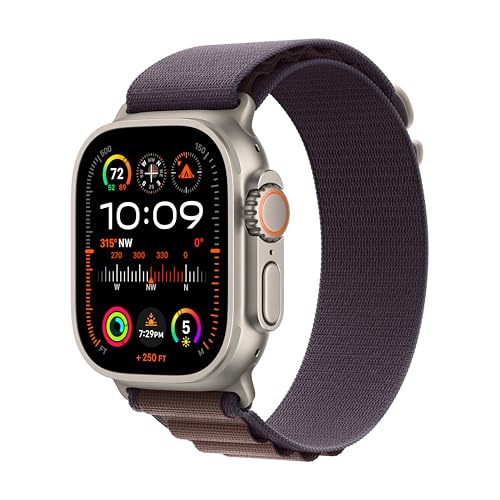
This simple trick will identify which version of the device you have
Given that there are often very few differences between Apple Watch generations, it can sometimes be pretty tricky to know which one you have on your wrist.
This is vital knowledge. Though there aren't many occasions when you'll need to know which Apple Watch you have, it's essential for finding a compatible Apple Watch band, passing it on to a friend or family member, or trading it in.
To do any of those successfully, you'll need to be able to identify which version is in your hands.
Thankfully, there's a simple way to discover which version of the Apple Watch you have. Read on for our step-by-step guide.
- Best Apple Watch apps to download
- Apple Watch tips and tricks
- New Apple Watch owner? Try these seven things first
1. Press the crown
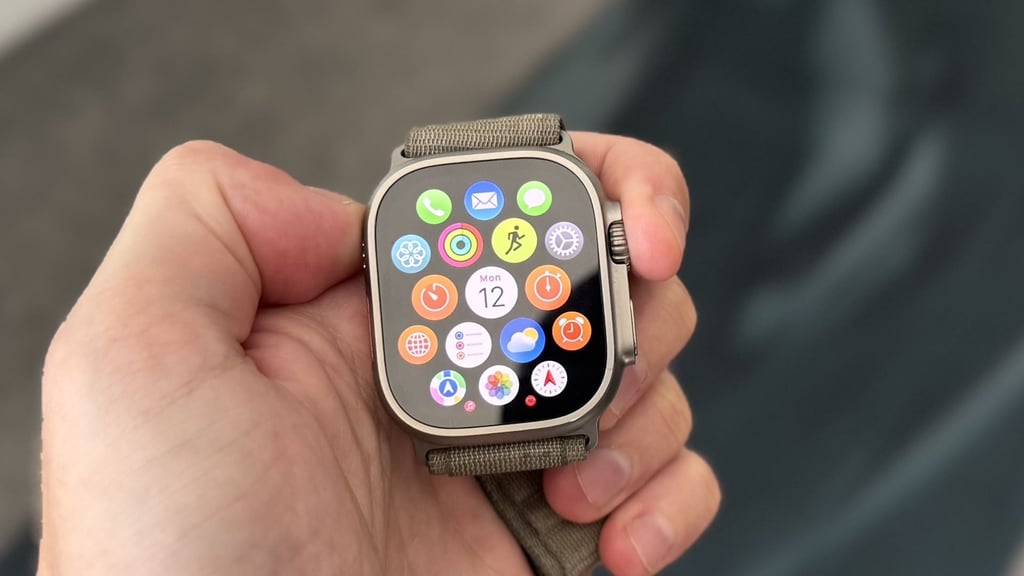
Press the Digital Crown on the right-hand side of the case to bring up the app grid.
2. Navigate to Settings
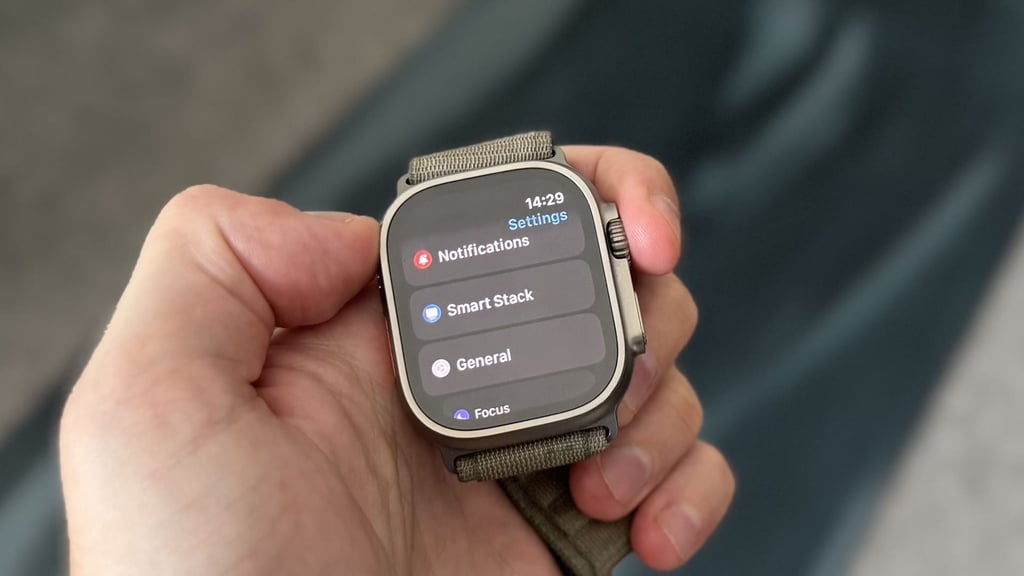
Find the Settings app by locating the grey cog icon on the screen. Touch the icon the bring up the settings.
3. Find your Apple Watch model number
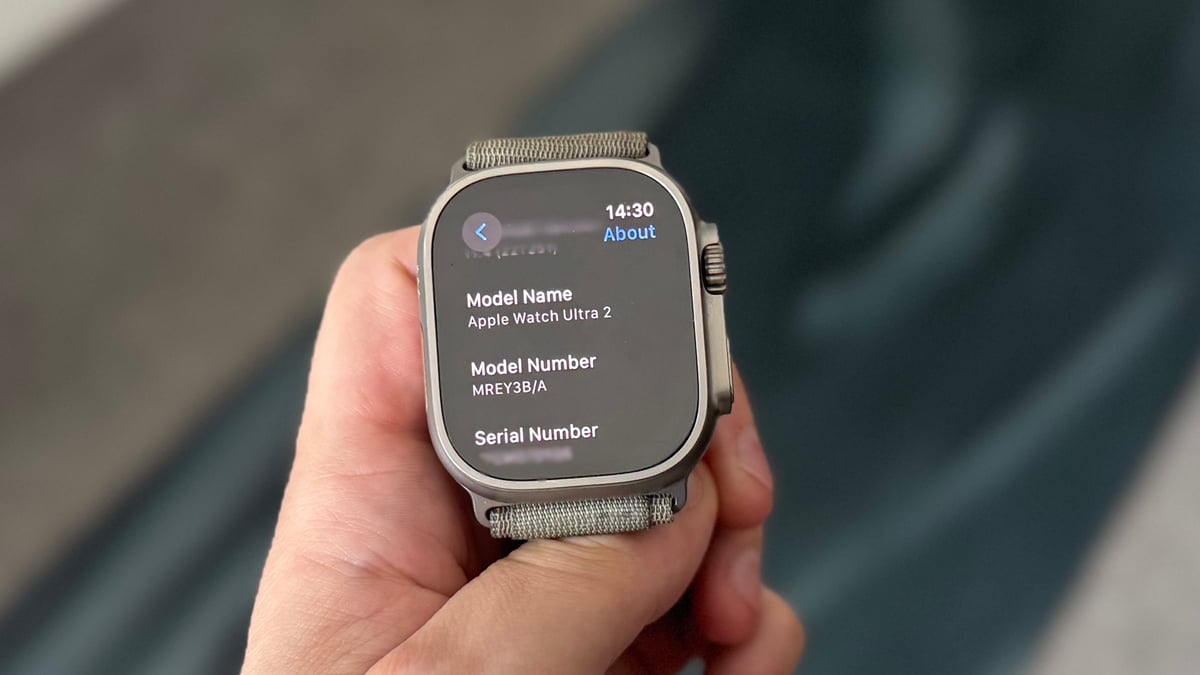
On the menu, tap 'General', then choose 'About'. You should now see the watch's model number - usually five digits beginning with an 'A'.
4. Go to Apple's website
Visit support.apple.com and type your model number into the search bar.
Click the top option 'Identify your Apple Watch', and scroll the page to find out which version of the device you have.
Top tip: You can also find your Apple Watch model number using the Apple Watch app on your iPhone. Tap 'General', then 'About' to locate it.